> ## Documentation Index
> Fetch the complete documentation index at: https://docs.paradigmai.com/llms.txt
> Use this file to discover all available pages before exploring further.
# Blank Sheet
Creating a blank new sheet allows you to set up your own columns and prompts from scratch.
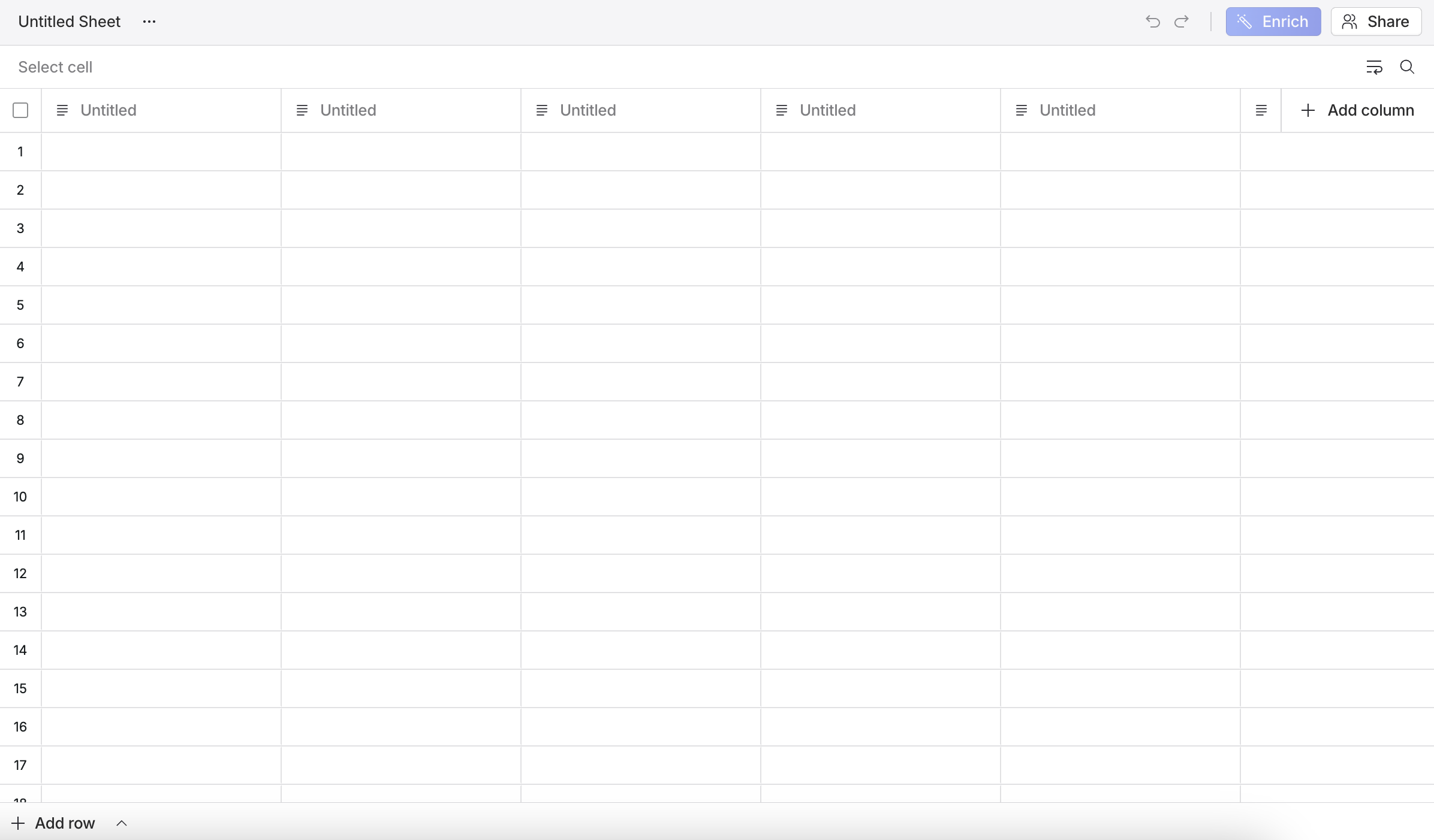 It comes preset with empty rows and columns, and you can always add more with the `Add Row` and `Add Column` buttons.
Select the top row of an empty column to add a column title.
It comes preset with empty rows and columns, and you can always add more with the `Add Row` and `Add Column` buttons.
Select the top row of an empty column to add a column title.
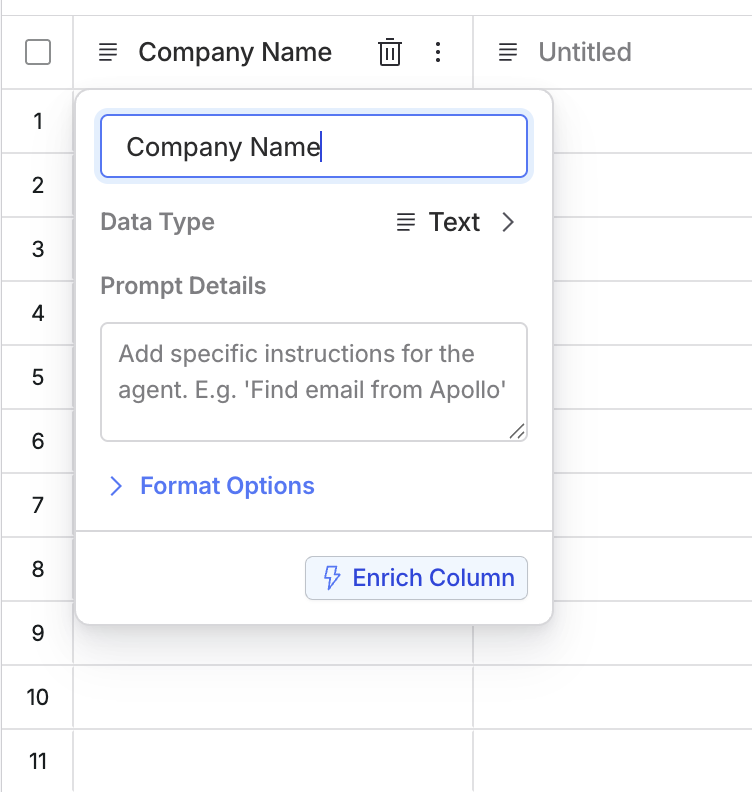 Notice that the `Enrich` button is disabled. This is because we don't have starting data for this cell yet. While `Chat` works even if you have no pre-existing data in that row, `Enrich` only works when you more than one data point already present in that row.
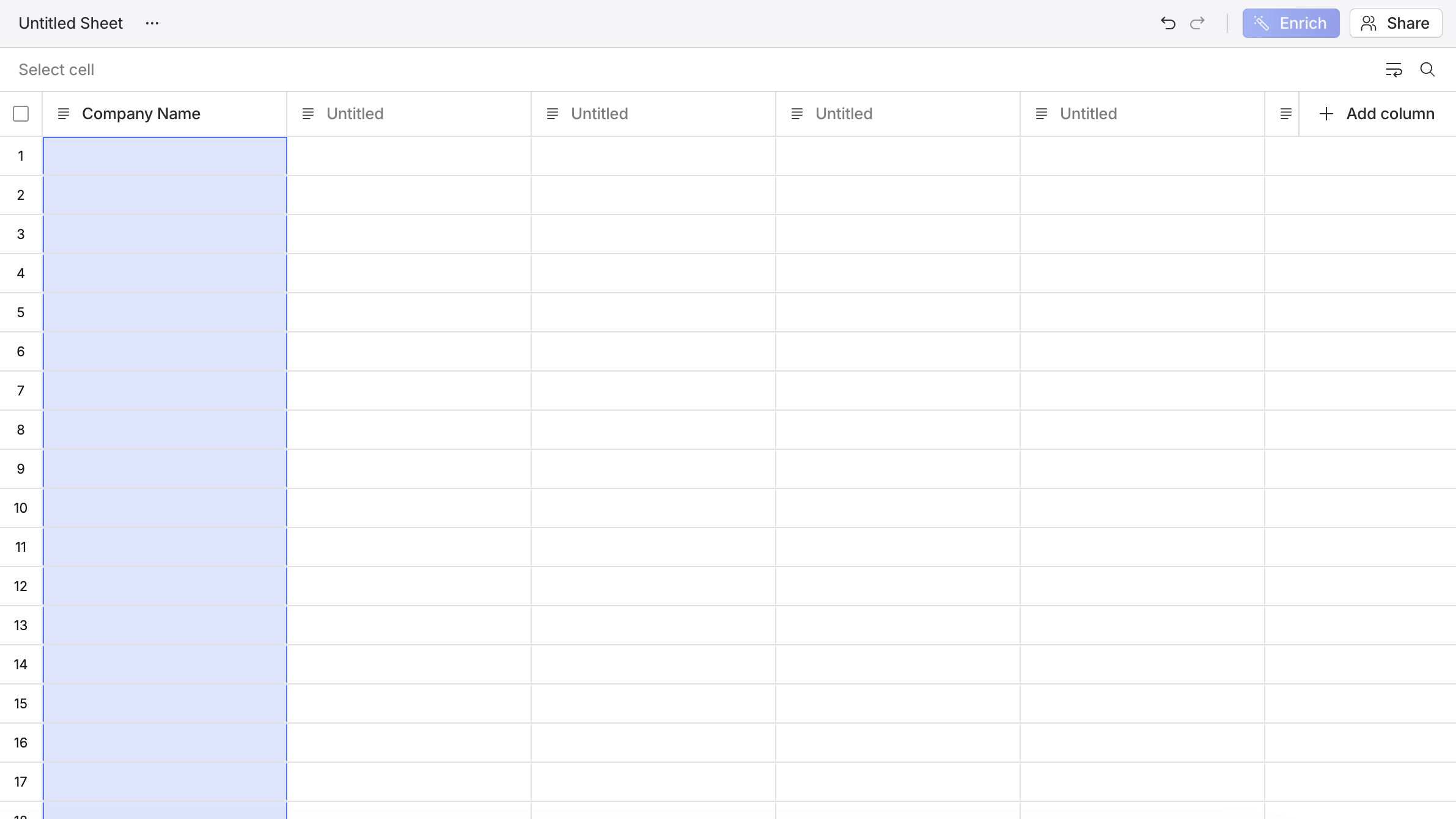 You can then type or paste in data into the first cell / column.
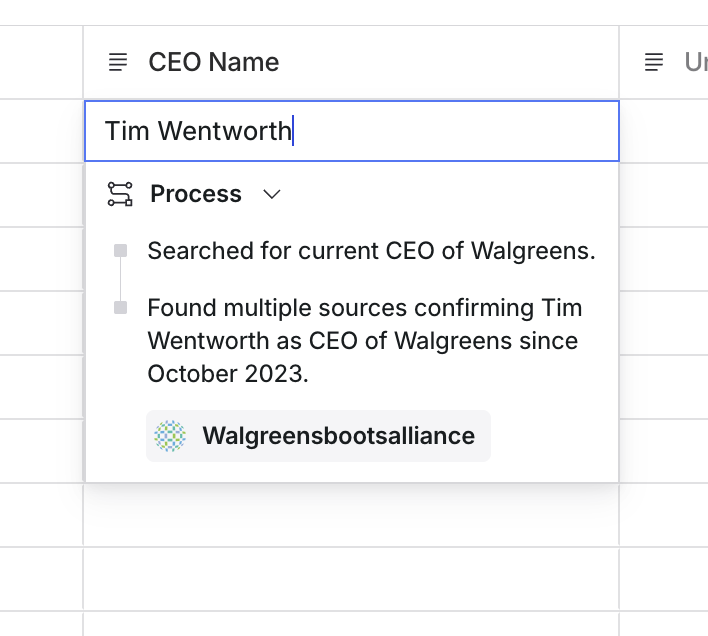
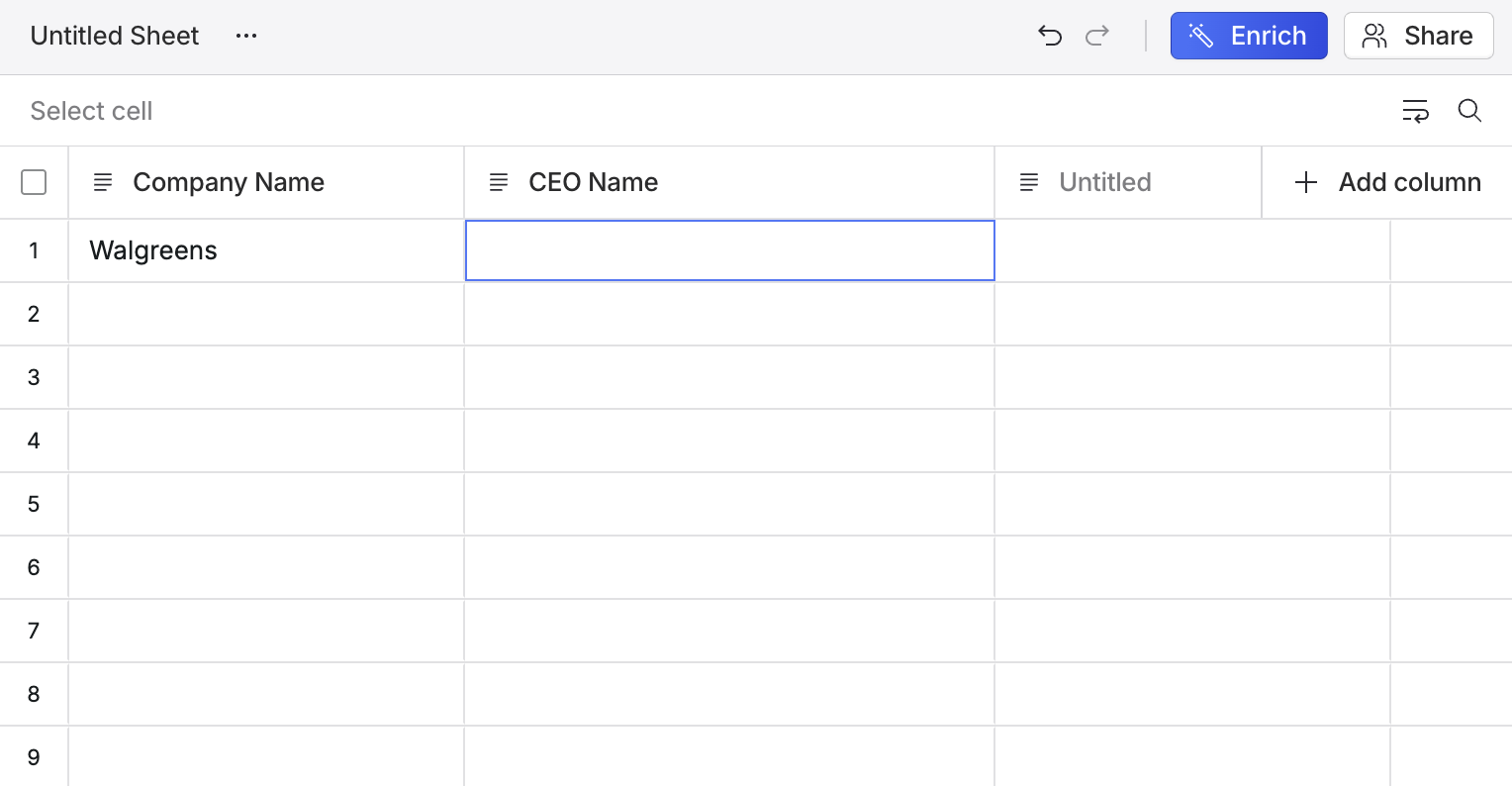 Notice that the `Enrich` button is now enabled. We can now generate the data for this cell. Double-clicking on a cell reveals the generated data along with the agent's steps and cited sources.
 Now you can repeat similar processes to fill in the rest of the sheet or use it as you would a normal spreadsheet. You can also integrate in chat calls to build on top of this data.