> ## Documentation Index
> Fetch the complete documentation index at: https://docs.paradigmai.com/llms.txt
> Use this file to discover all available pages before exploring further.
# Email Setup & OAuth
Learn how to connect your email account and manage email authentication in Paradigm.
## Connecting Your Email Account
Before you can send emails through Paradigm, you'll need to connect your email account.
### First-Time Setup
1. **Trigger the OAuth prompt**: When you attempt to send emails for the first time, you'll see a prompt to connect your account. Click `Connect OAuth`.
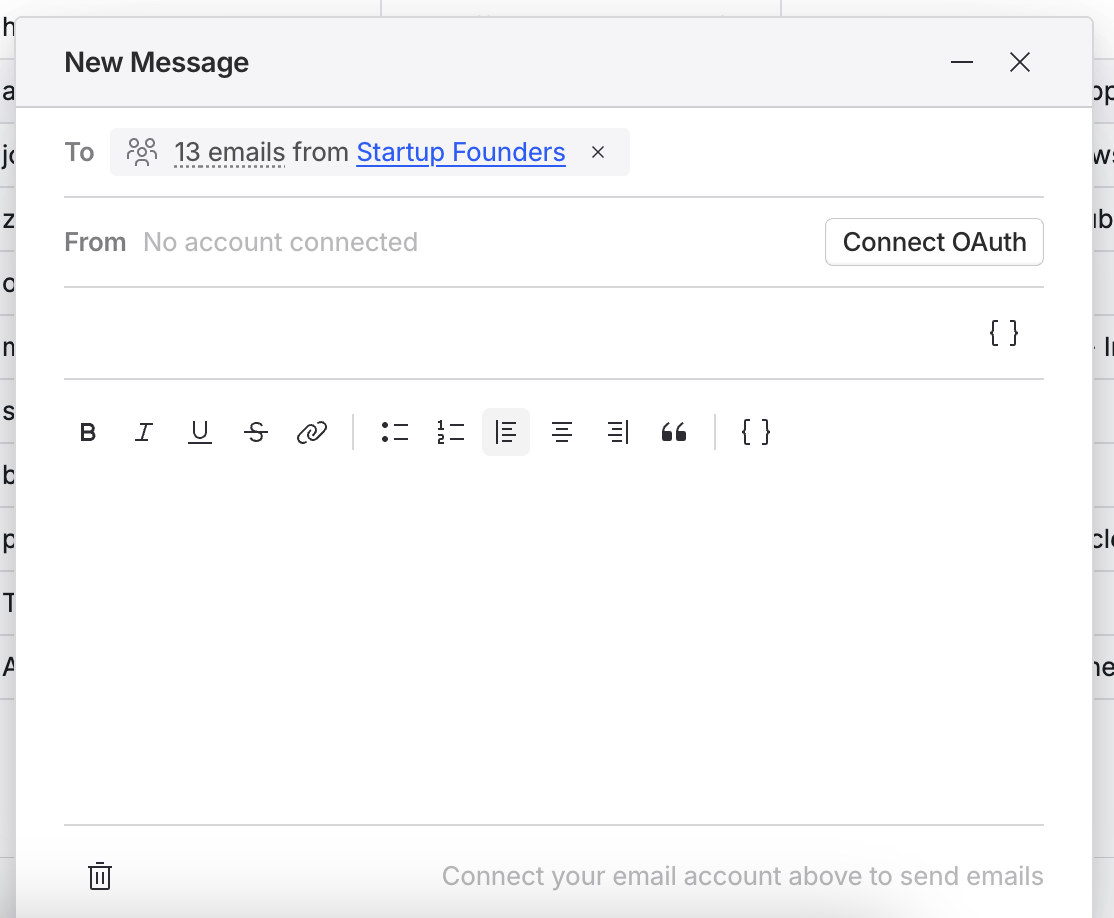 2. **Choose your provider**: Select either Google or Microsoft as your email provider.
3. **Authorize Paradigm**: You'll be redirected to your email provider's authorization page. Review the requested permissions and click **Allow** or **Accept**.
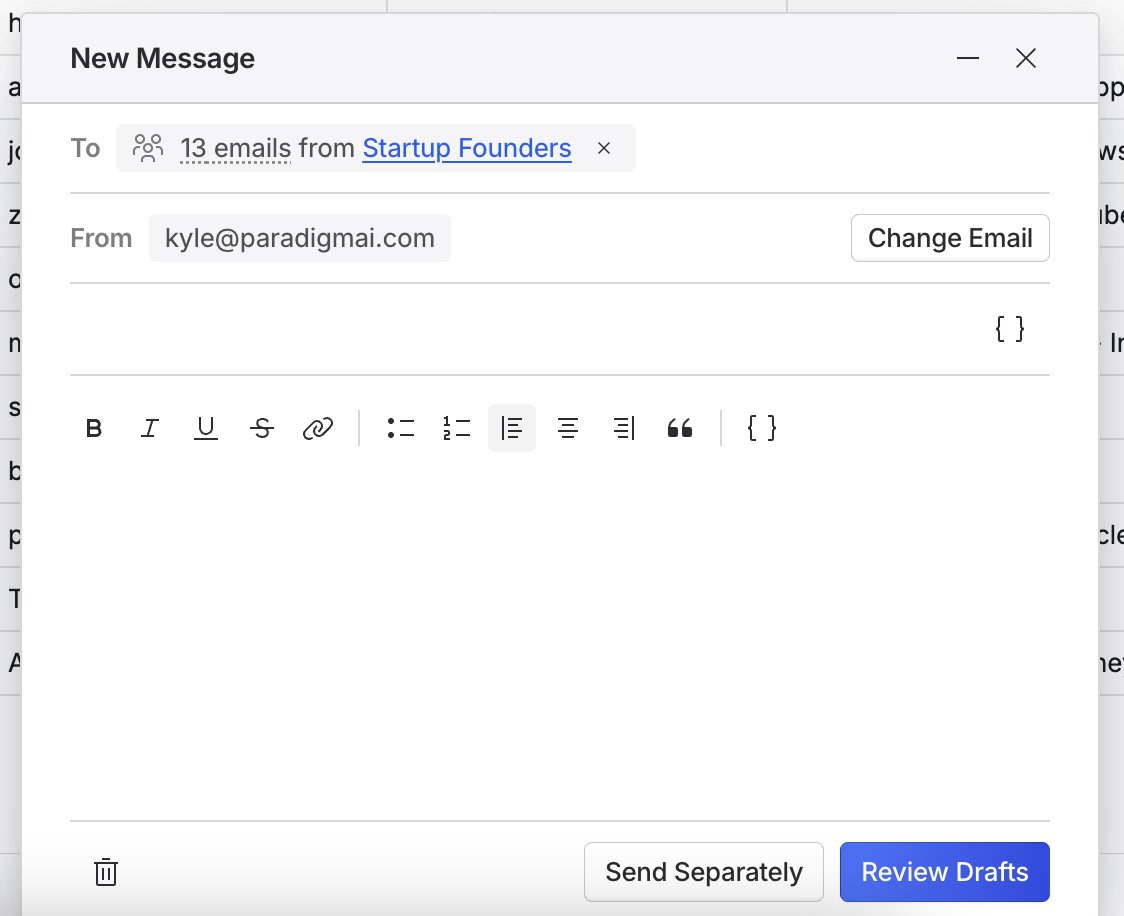
4. **Complete setup**: After authorizing, you'll be redirected back to Paradigm. Your connected email address will appear in the **From** field if the connection was successful.
2. **Choose your provider**: Select either Google or Microsoft as your email provider.
3. **Authorize Paradigm**: You'll be redirected to your email provider's authorization page. Review the requested permissions and click **Allow** or **Accept**.
4. **Complete setup**: After authorizing, you'll be redirected back to Paradigm. Your connected email address will appear in the **From** field if the connection was successful.
 You're now ready to compose and send emails! [Learn how to send emails →](/email/sending-emails)
## Understanding OAuth Permissions
When you connect your email account, Paradigm requests specific permissions to send emails on your behalf.
**Gmail Permissions:**
* **Send email** — Allows Paradigm to send emails from your email address
* **View your email address** — Used to identify which account is connected
* **View your basic profile info** — Displays your name, profile picture, and publicly available details
**Microsoft Permissions:**
* **Send mail** — Allows Paradigm to send emails from your email address
* **Read your profile** — Used to identify which account is connected
Paradigm **cannot** read, modify, or delete existing emails in your inbox. The
permissions are strictly limited to sending new emails.
## Token Refresh & Expiration
OAuth tokens expire periodically for security. Paradigm automatically refreshes your tokens in the background, so you don't need to reconnect manually.
**When automatic refresh might fail:**
* You changed your email account password
* You revoked Paradigm's access from your email provider's settings
* Your organization updated security policies
If this happens, you'll see an error when trying to send emails. Simply reconnect your account following the same OAuth flow.
## Security & Privacy
### How Paradigm Handles Your Credentials
* Paradigm **never** stores your email password
* OAuth tokens are encrypted and stored securely
* All email sends are logged for audit purposes
### Revoking Access
You can revoke Paradigm's access to your email account at any time from your email provider's security settings:
**For Google:**
1. Go to your [Google Account Security Settings](https://myaccount.google.com/security)
2. Click **Your connections to third-party apps & services**
3. Find Paradigm and click **Delete all connections**
**For Microsoft:**
1. Go to your [Microsoft Account Security Settings](https://account.microsoft.com/security)
2. Click **App permissions**
3. Find Paradigm and click **Revoke**
## Troubleshooting
### Missing Required Scopes
If you see "Missing required email scopes" when trying to send emails, your initial authorization was incomplete. To fix this:
1. Disconnect your email account
2. Reconnect using the OAuth flow
3. Ensure you approve **all** requested permissions during authorization
### Emails Not Sending
If your emails aren't sending, try these solutions:
* Reconnect your account if the token is invalid
* Wait 24 hours if you've hit your provider's daily limit
* Verify your email account is active and accessible
### Account Shows as Disconnected
If your previously connected account shows as disconnected or invalid, simply reconnect your account using the OAuth flow. Your previous campaigns will be preserved.
This usually happens when you:
* Changed your email password
* Manually revoked Paradigm's access from your email provider's security settings
* Your token refresh failed
## Need Help?
If you're still experiencing issues after following this guide:
* Join our [Slack community](https://join.slack.com/t/paradigmcommunity/shared_invite/zt-2zho8c43o-DumkgN4KLfB0xSM37gq5ug) for community support
* Email us at [support@paradigmai.com](mailto:support@paradigmai.com)
***
## Next Steps
Now that your email account is connected, learn how to:
* [Send personalized emails →](/email/sending-emails)
* [Manage your email campaigns →](/email/email-campaigns)
You're now ready to compose and send emails! [Learn how to send emails →](/email/sending-emails)
## Understanding OAuth Permissions
When you connect your email account, Paradigm requests specific permissions to send emails on your behalf.
**Gmail Permissions:**
* **Send email** — Allows Paradigm to send emails from your email address
* **View your email address** — Used to identify which account is connected
* **View your basic profile info** — Displays your name, profile picture, and publicly available details
**Microsoft Permissions:**
* **Send mail** — Allows Paradigm to send emails from your email address
* **Read your profile** — Used to identify which account is connected
Paradigm **cannot** read, modify, or delete existing emails in your inbox. The
permissions are strictly limited to sending new emails.
## Token Refresh & Expiration
OAuth tokens expire periodically for security. Paradigm automatically refreshes your tokens in the background, so you don't need to reconnect manually.
**When automatic refresh might fail:**
* You changed your email account password
* You revoked Paradigm's access from your email provider's settings
* Your organization updated security policies
If this happens, you'll see an error when trying to send emails. Simply reconnect your account following the same OAuth flow.
## Security & Privacy
### How Paradigm Handles Your Credentials
* Paradigm **never** stores your email password
* OAuth tokens are encrypted and stored securely
* All email sends are logged for audit purposes
### Revoking Access
You can revoke Paradigm's access to your email account at any time from your email provider's security settings:
**For Google:**
1. Go to your [Google Account Security Settings](https://myaccount.google.com/security)
2. Click **Your connections to third-party apps & services**
3. Find Paradigm and click **Delete all connections**
**For Microsoft:**
1. Go to your [Microsoft Account Security Settings](https://account.microsoft.com/security)
2. Click **App permissions**
3. Find Paradigm and click **Revoke**
## Troubleshooting
### Missing Required Scopes
If you see "Missing required email scopes" when trying to send emails, your initial authorization was incomplete. To fix this:
1. Disconnect your email account
2. Reconnect using the OAuth flow
3. Ensure you approve **all** requested permissions during authorization
### Emails Not Sending
If your emails aren't sending, try these solutions:
* Reconnect your account if the token is invalid
* Wait 24 hours if you've hit your provider's daily limit
* Verify your email account is active and accessible
### Account Shows as Disconnected
If your previously connected account shows as disconnected or invalid, simply reconnect your account using the OAuth flow. Your previous campaigns will be preserved.
This usually happens when you:
* Changed your email password
* Manually revoked Paradigm's access from your email provider's security settings
* Your token refresh failed
## Need Help?
If you're still experiencing issues after following this guide:
* Join our [Slack community](https://join.slack.com/t/paradigmcommunity/shared_invite/zt-2zho8c43o-DumkgN4KLfB0xSM37gq5ug) for community support
* Email us at [support@paradigmai.com](mailto:support@paradigmai.com)
***
## Next Steps
Now that your email account is connected, learn how to:
* [Send personalized emails →](/email/sending-emails)
* [Manage your email campaigns →](/email/email-campaigns)